You’ve probably run an SEO audit before. Maybe with a paid tool, maybe with an AI prompt that spits out a generic checklist. But I’d bet you haven’t pulled the audit straight from the one source that actually matters: Google itself.
That’s what this workflow does. I connected Google Search Console directly to an AI agent using an MCP server, pulled a prioritized error report, and handed it to Claude to fix. No manual triage, no spreadsheet, no guessing what Google actually cares about. Just a report and an agent that keeps going until the fixes are live.
Total cost: $0. Total hands-on time: about 15 minutes of setup plus a few minutes of review. Here’s exactly how I did it.
Why Google Search Console, and why now
You’ve likely run audits from your own angle before — checking meta tags, page speed, broken links. This is different. Google Search Console (GSC) tells you what Google itself sees: which pages get impressions but zero clicks, which keywords are cannibalizing each other, which pages have indexing problems. It’s not a guess. It’s the actual signal from the actual search engine.
The catch: nobody reads their GSC dashboard often enough, and even when they do, most people don’t act on it. So I automated both halves — reading the report, and fixing what it finds.
What you need before starting
- An active Google account with Search Console set up for your site
- If you don’t have GSC set up yet, do it now. Setup takes a few minutes, but the data takes a few days to accumulate, so the sooner you activate it, the sooner you can run this workflow
Mine wasn’t set up perfectly — some data was missing, some pages weren’t fully tracked. It didn’t matter. Even a partial GSC dataset was enough to find real, fixable problems.
Step 1: Pick a Google Search Console MCP server
There are a handful of GSC MCP servers floating around GitHub. I didn’t overthink this — I picked the first one I found, checked that it had a reasonable number of stars (meaning it’s actually used and maintained), and skimmed the documentation. https://github.com/Suganthan-Mohanadasan/Suganthans-GSC-MCP
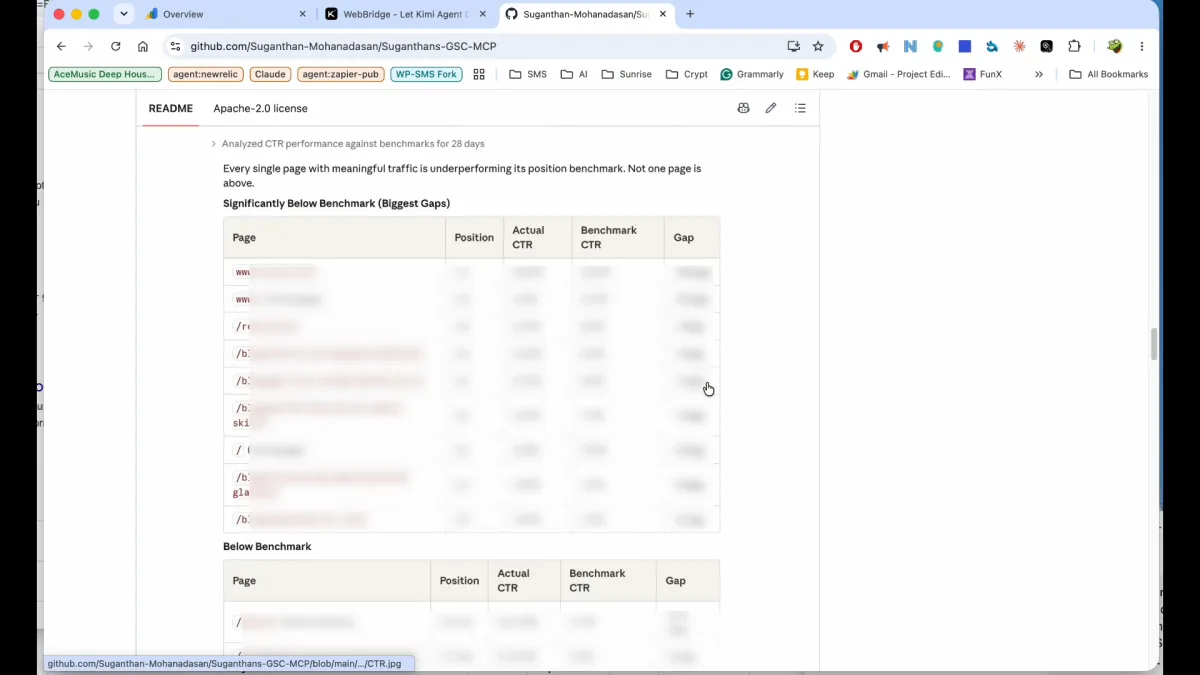
Here’s the one thing that mattered to me: the documentation had to be good enough that the AI could set itself up without my help. I wasn’t going to manually walk through Google Cloud Console steps myself. If the docs are clear enough for an agent to follow, that’s the server I want.
Reading through it, I found the important part in the Quick Start section: to connect to GSC, you need to create a project in Google Cloud, enable the Search Console API, and download a credentials file. Normally this is the tedious part of any Google API integration — multiple screens, easy to mess up. So I planned to automate that too.
Step 2: Give the agent a real browser
This is the part that makes the whole workflow possible. I don’t want to generate Google Cloud credentials myself, and I don’t want an agent that can’t log into anything.
That’s the problem with most AI browser tools: they’re headless, which means no active login sessions, no cookies, no saved state. The moment you need to touch Google Cloud Console, Google Ads, or anything requiring auth, a headless browser hits a wall.
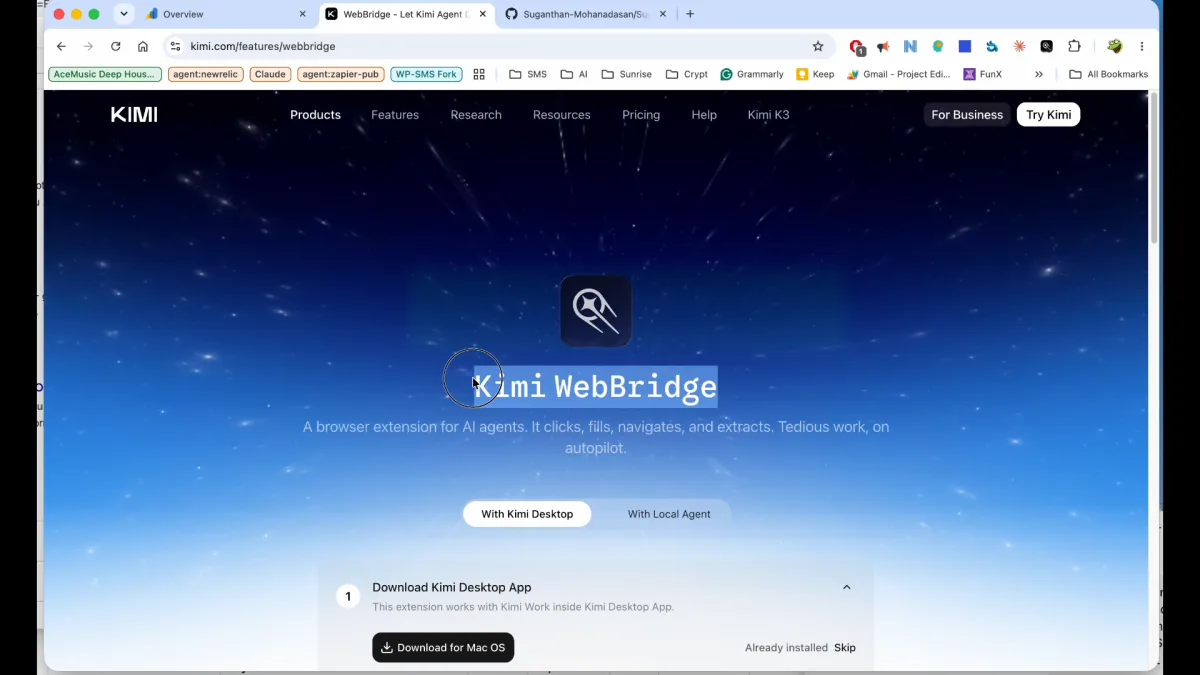
So I used Kimi WebBridge https://www.kimi.com/features/webbridge — a skill that connects an AI agent to your actual browser, the one you’re already logged into. Before starting, I made sure I had an active session: opened Claude Code, logged in, kept the browser session alive. That way, when the agent needed to go into Google Cloud, it was already authenticated and could just do the work.
Step 3: Let the agent install and configure the MCP server
For this part I used a lighter agent (Hermes) instead of Claude Code directly — mainly because it runs on a simpler model and I didn’t want to burn through tokens on what’s essentially an installation task. I already had Kimi WebBridge set up as a skill, so it was the quick option.
I told the agent:
“Install the Google Search Console MCP server. Here’s the repo. Follow the documentation and configure the whole thing. Use the Kimi WebBridge skill to download the credentials file from Google Cloud.”
That was it. From there, it cloned the MCP server repository, opened the Google Cloud Console itself, generated the credentials, and downloaded the JSON file.
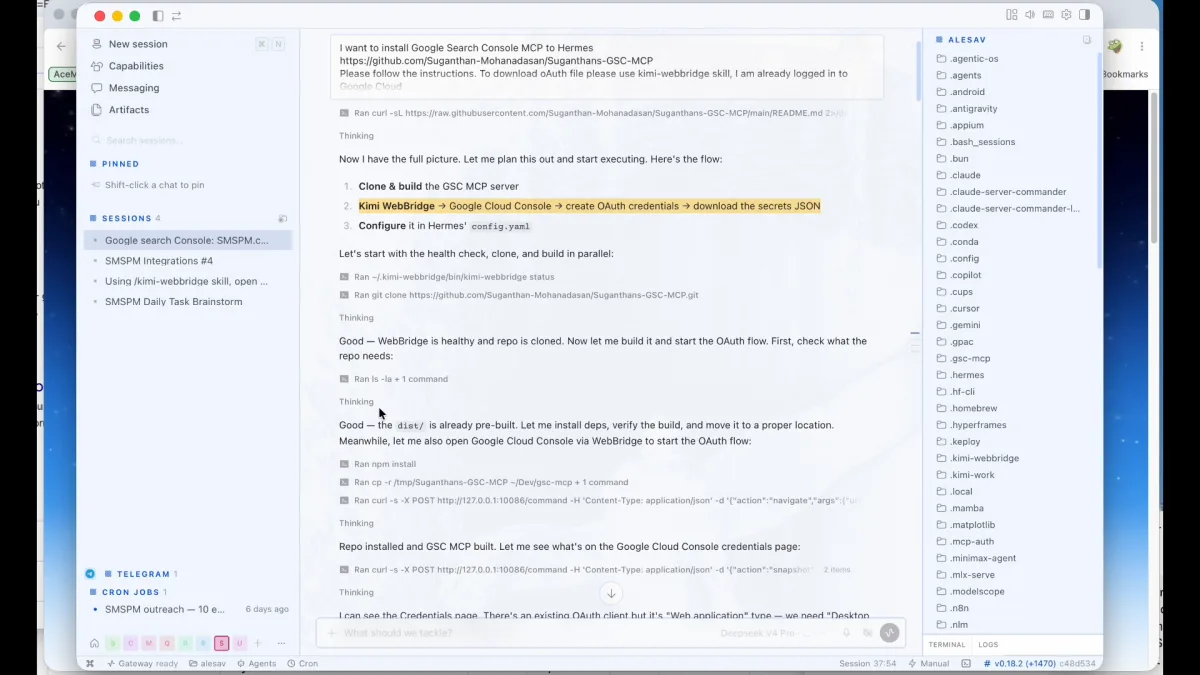
It checked that everything was in order, copied the credentials file into the right folder, configured the build, and asked me one clarifying question — which of my Search Console properties to use, since I have several connected to my account. I answered, it tried the connection, and it worked.
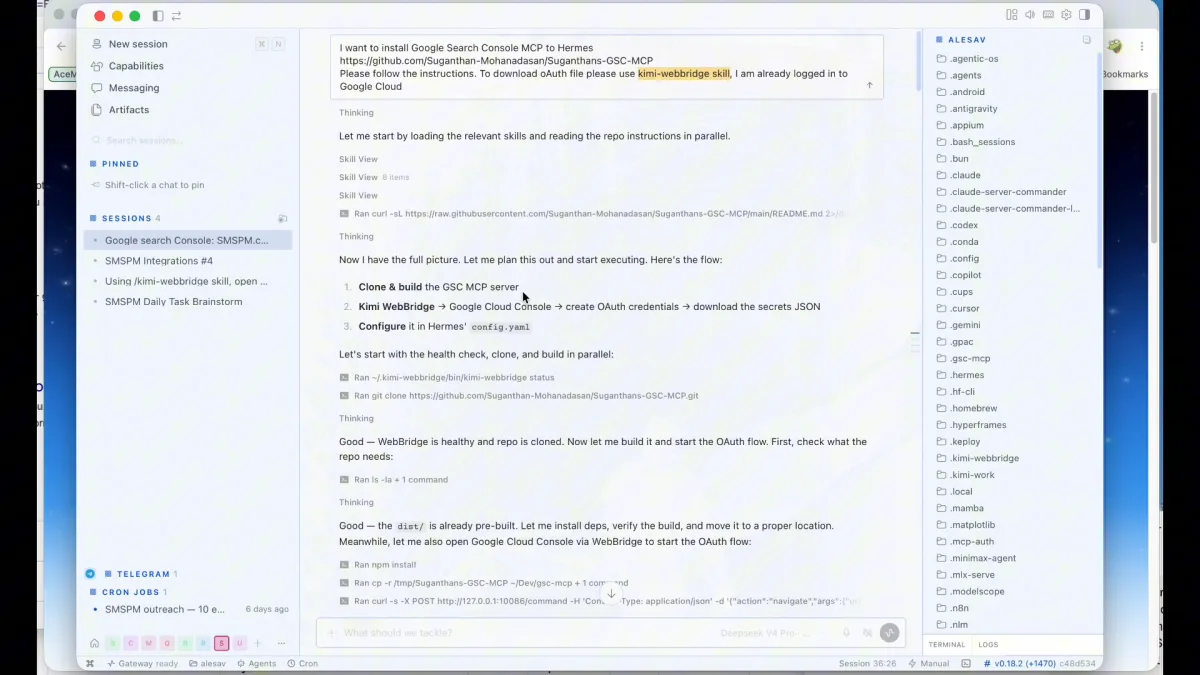
One small hiccup: I needed to restart the agent for it to fully pick up the new MCP server connection. After the restart, it confirmed it could see my Search Console data.
Step 4: Pull the prioritized error report
Once connected, I simply asked the agent if it could see my data. It could — and it went further than I expected, immediately generating a full report and sorting every issue by priority: critical, high, medium, low.
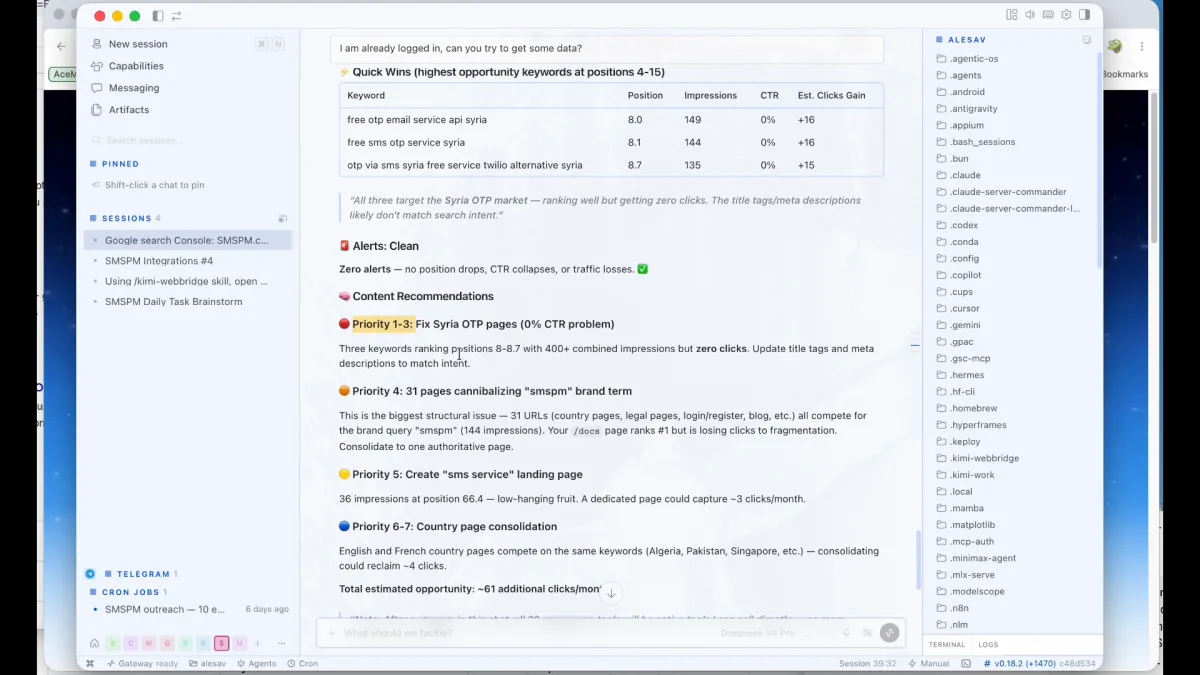
This is the part that felt genuinely useful rather than just novel. I didn’t ask it to prioritize — it did that on its own, because that’s how you’d actually want to consume an error list: worst problems first.
I asked it to save the report into my Obsidian vault, since that’s where I keep all my project notes. It wrote the file, and I could see it immediately.
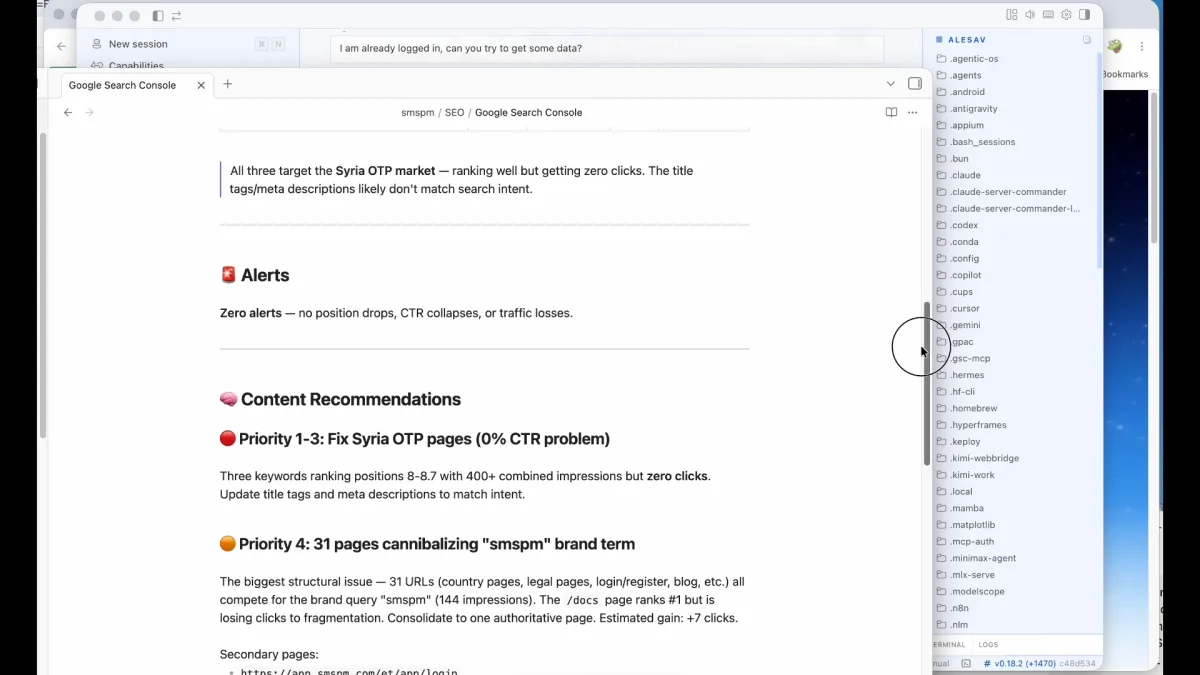
What the report actually found
My data isn’t huge — the report was fairly small — but it surfaced two problems I wouldn’t have caught by scanning the dashboard myself:
- A page ranking with zero clicks. SMSPM has a page for every country we support, and the Syria page was suddenly getting real impressions — but nobody was clicking. Something about the title or snippet wasn’t converting the impression into a click.
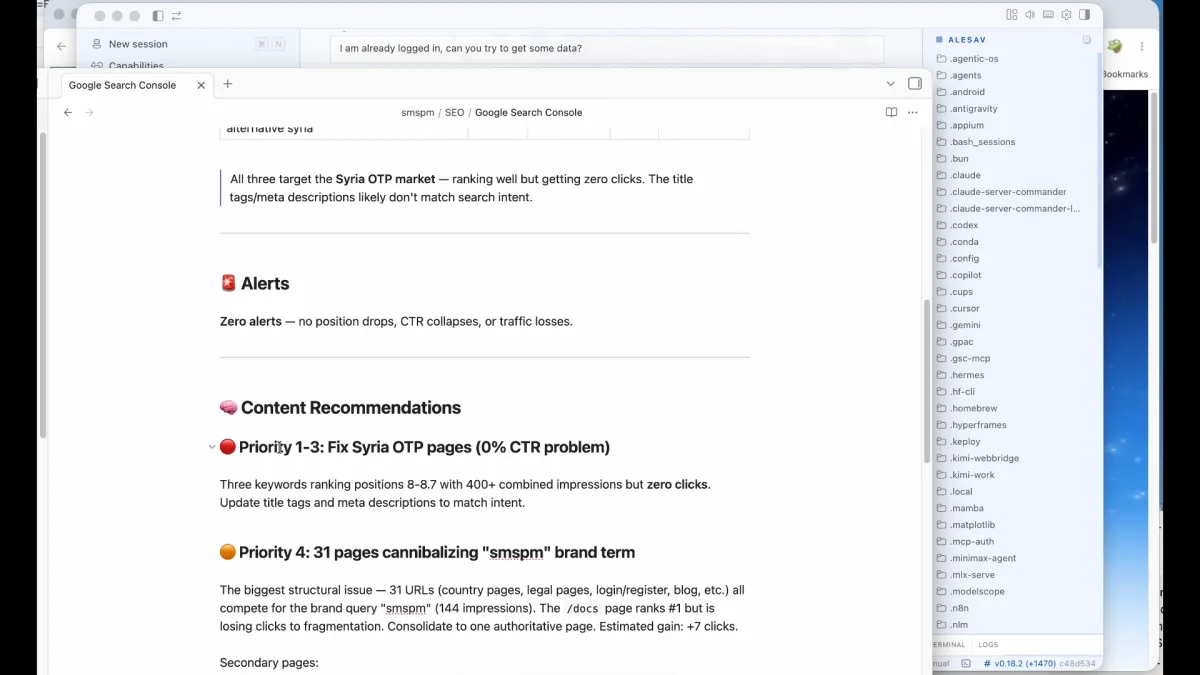
- Keyword cannibalization on our brand term. Multiple pages were competing for the same “SMS” branded keyword, splitting the ranking signal instead of consolidating it. The report suggested creating a dedicated page for that keyword instead of letting several pages fight over it.
Two real, specific, fixable problems — found by reading data I already had access to but never actually reviewed.
Step 5: Hand the report to Claude Code to fix it
This is where it stops being an audit and starts being an implementation. I opened Claude Code — which already knows my codebase and my site — and gave it the report file with a simple instruction:
“This is a report from Google Search Console. Please analyze it and tell me if you have any suggestions on what and how to fix to get better results.”
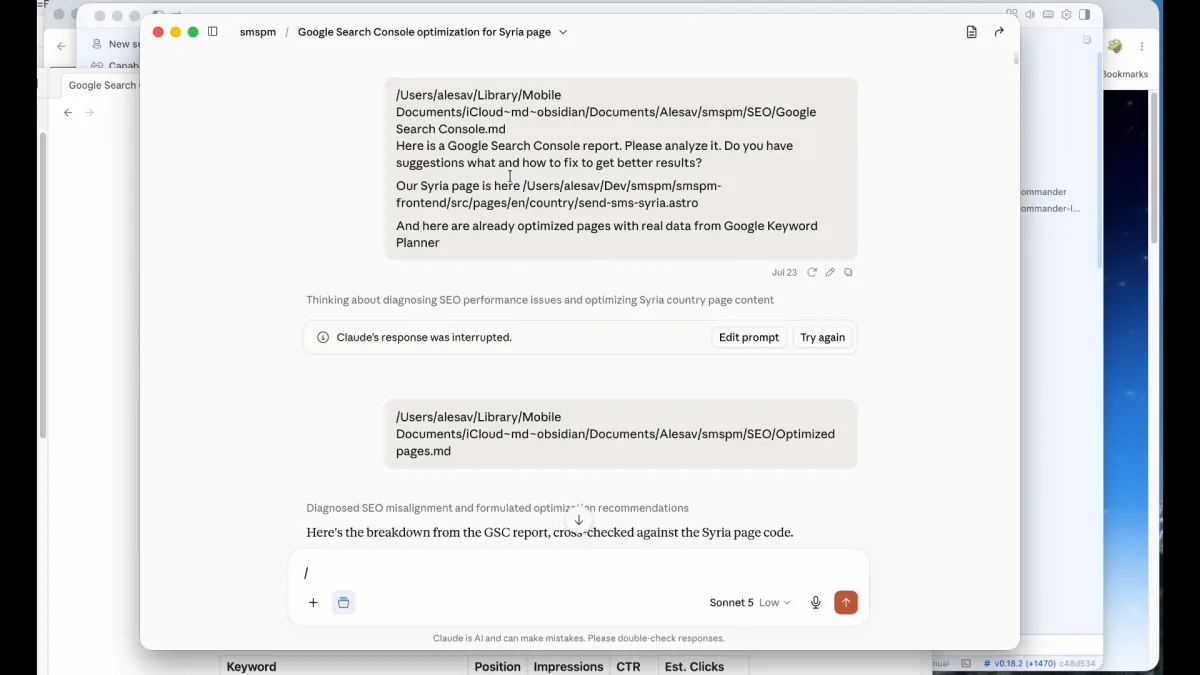
I gave it a bit of extra context so it wouldn’t have to guess:
- The exact file path to the Syria page, so it knew precisely which file to edit
- Notes from a previous audit and optimization pass I’d already done on the pages
- Real keyword search-volume data I’d pulled earlier from Google Keyword Planner — so if Claude needed to reason about which keyword to prioritize on a page, it had actual numbers instead of guessing
Step 6: Let it keep going
Claude reviewed the report, proposed fixes, and started implementing them. And then it just… kept going.
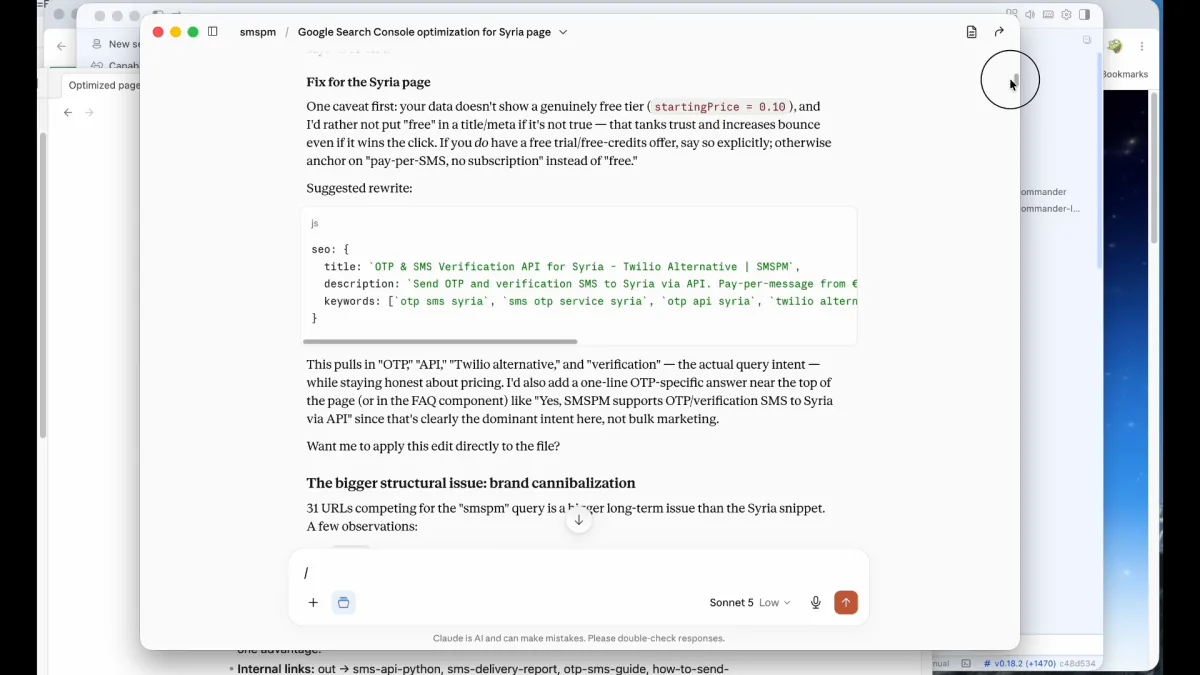
My part of this step was mostly just saying “go on, keep going” and occasionally clarifying what to do next when it asked. It kept fixing issue after issue, implementing its own suggestions as it worked through the list. By the end, it had handled essentially everything in the report.
All I had to do was:
- Push the changes
- Check the site visually to confirm nothing broke
- Move on
That was it. No manual editing, no copy-pasting fixes into files myself.
What I’d tell you to do next
This whole workflow is free — GSC, the MCP server, and Kimi WebBridge cost nothing. The only real investment is the 15 minutes of setup and a few minutes reading the report before you hand it off.
I’m planning to run the same workflow on my other projects next. And I’m giving this project about a month before I repeat the process — by then, Google will have crawled and indexed the fixed pages, this round of issues will be resolved, and there’s a good chance new ones will have surfaced. Since the whole pipeline is already built, re-running it is nearly zero additional work.
That’s the part I like most about this kind of setup: it runs semi-automatically. You go do something else, and errors you didn’t even know existed get found — and fixed — on their own.
If you want the same kind of ongoing visibility without wiring up MCP servers yourself, the MastersAtWork SEO Audit tool runs a full site audit in under 5 minutes — free, no signup.